Wallet
The SUBFROST APP is currently in development and its interface is subject to change.
The Wallet Dashboard is where you view your assets, manage UTXOs, track transactions, and send and receive BTC.
Highlights:
- Connect OKX, Xverse, Leather, Unisat, and more
- Create a browser keystore wallet (no extension needed), and back it up to Google Drive
- Dual address support (Taproot + SegWit)
- Indexing of Alkanes, Runes and BRC20s
- UTXO management and freeze protection
- Transaction history with block explorer links

Browser Keystore (Self-Custodial)
Create a fully self-custodial wallet stored locally in your browser—no extensions required.
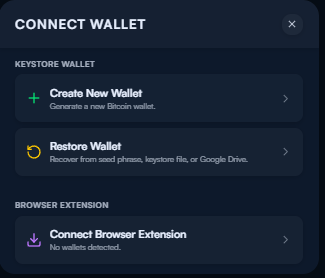
Create a New Wallet
- Click "Create New Wallet" from the Connect Wallet menu
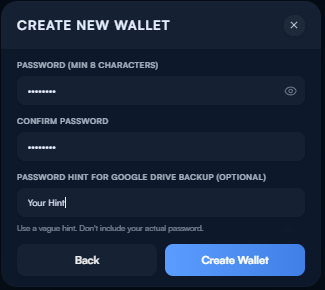
- Set a strong password (minimum 8 characters)
- Optionally add a password hint for Google Drive backup
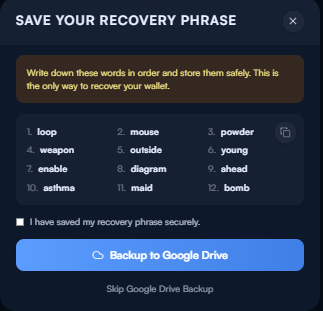
- Write down your 12-word recovery phrase — store it somewhere safe offline
- Optionally backup to Google Drive for convenience
Restore an Existing Wallet
- Click "Restore Wallet" from the Connect Wallet menu
- Enter your 12-word seed phrase, keystore file, or restore from Google Drive
- Set a new password
- Your wallet is restored with all your addresses
Security Features
- Encrypted storage — Your wallet data is encrypted with your password
- Password protected — Required to access your wallet each session
- Backup options:
- Export encrypted backup file
- Reveal seed phrase (password required)
- Backup to Google Drive
Your 12-word seed phrase is the master key to your wallet. Anyone with access to it can take your funds. Never share it, never store it digitally, never enter it on any website except SUBFROST.
Supported Wallets
Already have a Bitcoin wallet? Connect it directly:
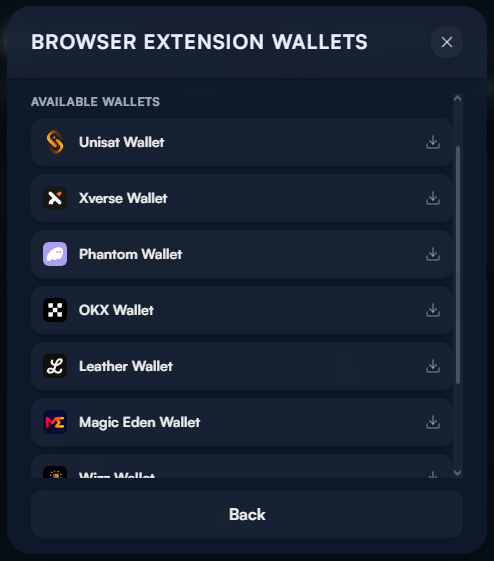
Connecting
- Click "Connect Wallet" in the header
- Select your wallet provider
- Approve the connection in your wallet extension
- Your addresses appear in the header
Dual Address Support
SUBFROST generates two address types for full compatibility:
| Address Type | Format | Use Case |
|---|---|---|
| Taproot | bc1p... | Alkanes, BRC20s, Runes, Ordinals |
| Native SegWit | bc1q... | Send and receive BTC |
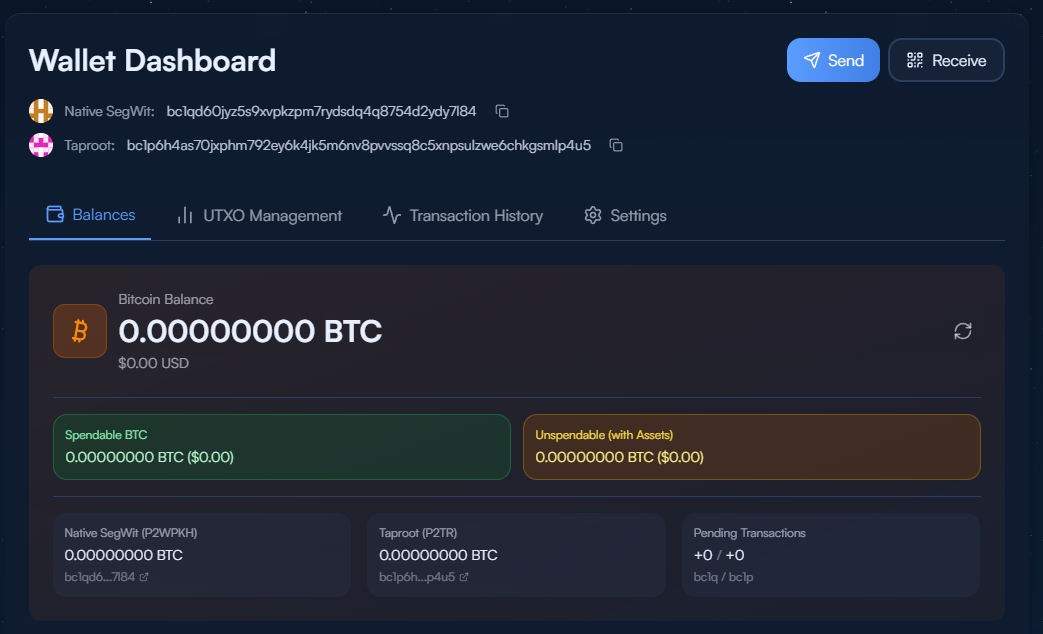
Both addresses are displayed in the wallet header with copy buttons. Some apps and exchanges prefer one format over the other—having both ensures you can always receive funds.
Wallet Tabs
Balances
View your complete asset holdings. The Balances tab shows:
- Bitcoin Balance — Total BTC with USD value
- Spendable BTC — Available for transactions
- Unspendable (with Assets) — BTC locked with inscriptions or tokens
- Address breakdown — Native SegWit / Taproot / Pending Transactions
- Protorune Assets — Alkanes and similar protocol tokens
- Inscription Assets — BRC20 and other inscription-based tokens
UTXO Management
Fine-grained control over your Bitcoin outputs:
What are UTXOs? Bitcoin works differently than traditional banking—your balance is made up of individual "coins" called UTXOs (Unspent Transaction Outputs). Managing them lets you control exactly which coins you spend.
Filter by:
- Address type (Native SegWit / Taproot)
- Asset type (Runes / Tokens / Inscriptions)
Actions:
| Action | What It Does |
|---|---|
| Freeze | Protect a UTXO from being spent accidentally |
| Unfreeze | Make it spendable again |
| Split | Separate inscriptions from the BTC they're attached to |
If you are exclusively using a Taproot address, freeze UTXOs containing rare inscriptions or collectibles so you don't accidentally spend them as transaction fees.
Transaction History
View all wallet activity:
- Status — Confirmed (green) or pending (yellow)
- Transaction ID — Click to view on block explorer
- Date/time and block confirmation
- Fee paid
- Expandable details — See all inputs and outputs
Settings
Configure your wallet:
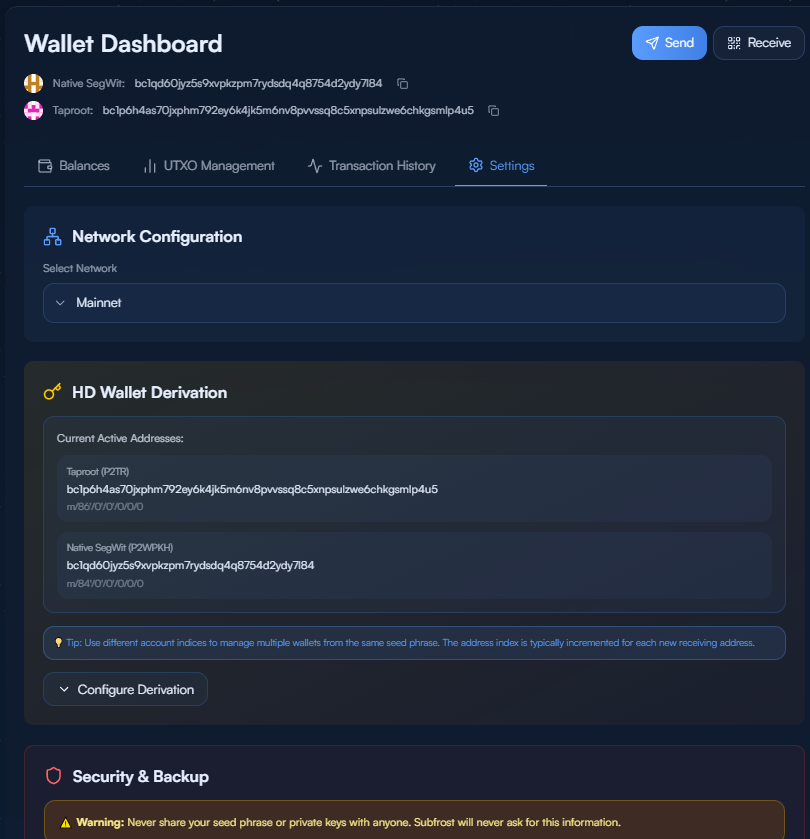
- Network Configuration — Select Mainnet, Signet, or Regtest
- HD Wallet Derivation — View your active addresses and configure derivation
- Security & Backup — Export backups, manage your seed phrase
Sending Bitcoin
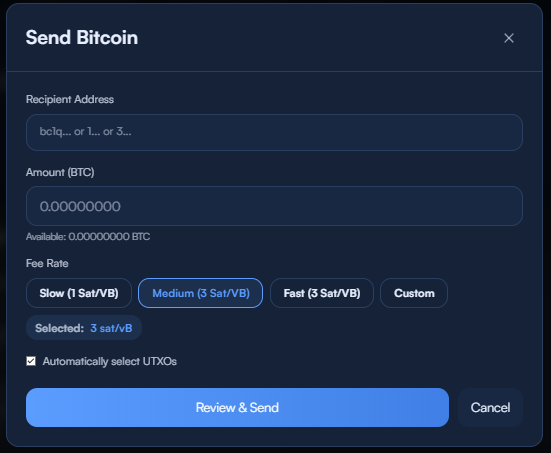
- Enter recipient address — Supports all Bitcoin address formats
- Enter amount — In BTC
- Choose fee rate — Slow / Medium / Fast / Custom
- Review & Send — Check everything before confirming
- Sign & broadcast — Your wallet signs the transaction
The app warns you if your fee seems unusually high—always double-check before confirming large transactions.
Advanced: Manual UTXO Selection
SUBFROST automatically selects UTXOs in your Native SegWit address.
For power users, you can disable auto-select and manually choose which UTXOs to spend (SegWit or Taproot). This is useful for privacy, consolidation, or avoiding specific coins.
Receiving Bitcoin
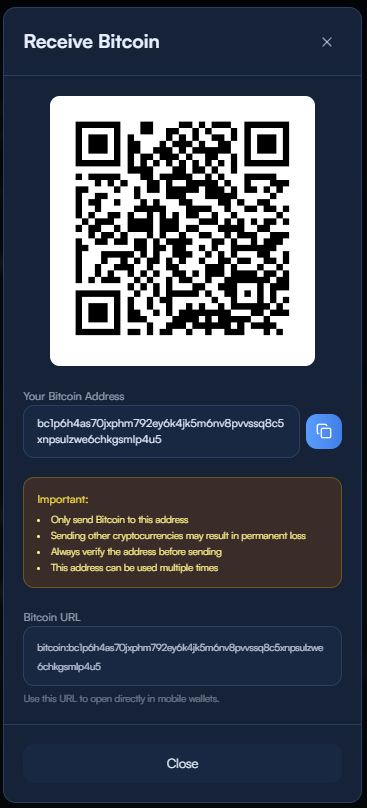
- QR code — Scan with any mobile wallet
- Your Bitcoin Address — Full address with copy button
- Important warnings — Only send Bitcoin, verify the address, can be reused
- Bitcoin URL — For direct opening in mobile wallets